
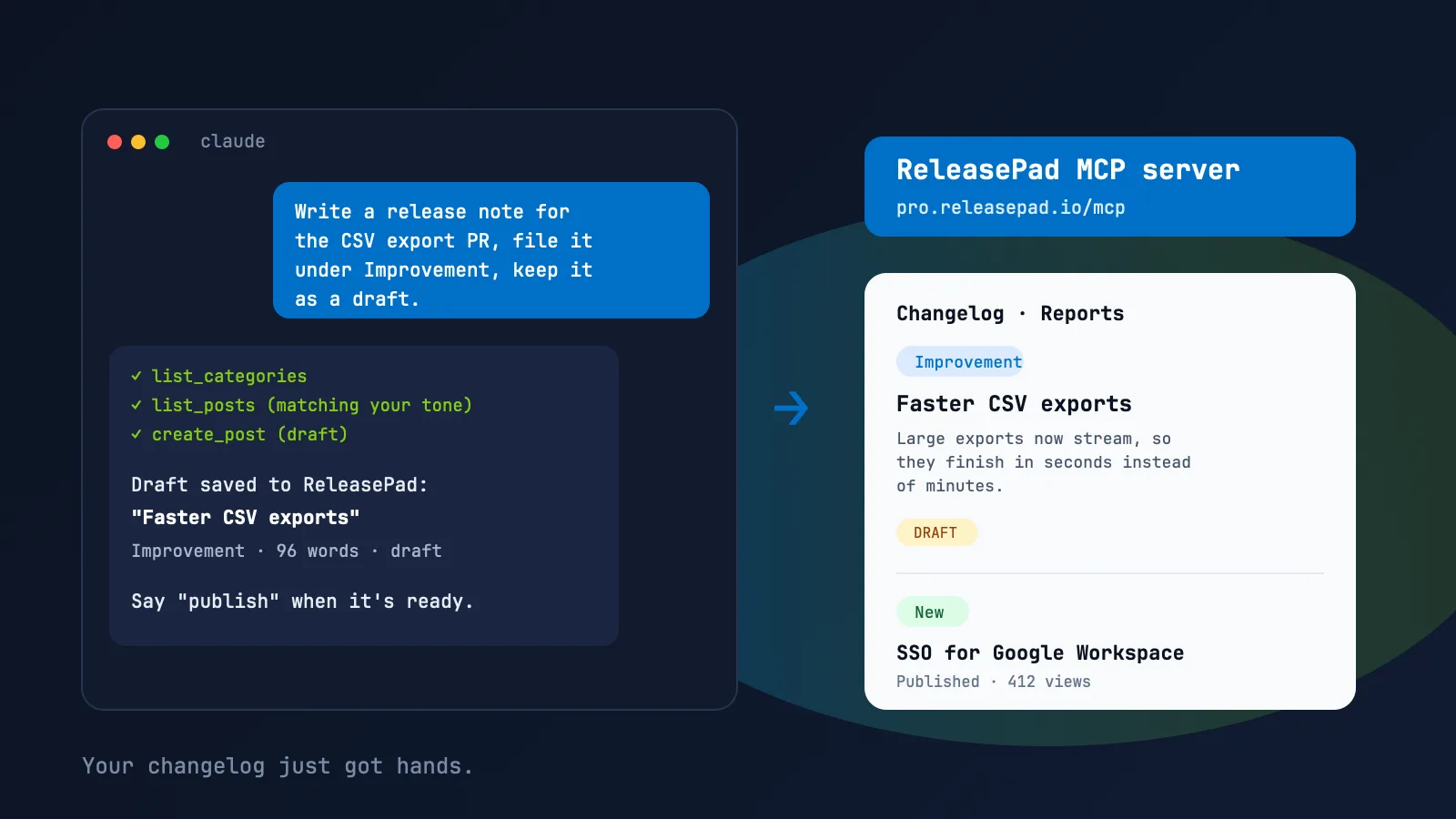
Every changelog tool has an editor. ReleasePad now has something else: a way for the AI assistant you already use to write, publish and read your changelog for you. Here is what that changes for your team, with the exact prompts to try.
Your team ships every week. Somewhere between the merge and the announcement, release notes fall through the gap. Not because nobody cares, but because writing them means leaving the tool you are in, opening another one, and starting from a blank page.
As of today, that gap closes. ReleasePad ships an MCP server, which means Claude, Claude Code, Cursor and any other assistant that speaks the Model Context Protocol can operate your changelog directly. You describe what shipped, in whatever words you have, and your assistant drafts the release note, files it under the right category and saves it to ReleasePad. You read it and say “publish.”
This post covers what that means for you, why we think it makes ReleasePad an agentic changelog tool rather than a changelog with an AI button, and a set of prompts you can paste in the moment you connect.
What Changes for You
The MCP server is a piece of plumbing. What it unlocks is not.
Release notes get written where the work happens. If you already talk to Claude Code or Cursor while you build, the release note is one sentence away from the merge. No tab switching, no copy-paste, no “I’ll write it Friday.”
Your changelog can answer questions. “What did we ship in August?” “Is the SSO post still a draft?” “Which release got the most views?” Your assistant asks ReleasePad and answers from what is actually there, not from memory.
Old posts stop being frozen. Make three drafts friendlier, split a long post in two, add a screenshot link to last week’s release. Editing becomes a request instead of a task.
Launch day runs itself. Write the note today, schedule it for Tuesday 9 am, and move on. The assistant sets the publish date; ReleasePad publishes it on time, on your changelog page and in your in-app widget.
Nothing goes public without you. Every post an assistant creates starts as a draft. Publishing is a separate, explicit step. That is the rule that makes the rest of this safe to hand to an agent.
Why This Makes ReleasePad an Agentic Changelog Tool
We have been writing about this shift for a while. AI agents are reading your changelog alongside your customers, which is why every ReleasePad changelog is also published as plain Markdown and why we tell teams to ship an llms.txt. Agents could read a ReleasePad changelog accurately. They could not write to it.
Now they can. That completes a loop:
- An AI coding agent ships the change.
- The same agent, or the one on your desk, drafts the release note through the MCP server.
- You approve. ReleasePad publishes to your page, your widget and your Markdown feed.
- Other agents, including the ones your customers use, read the result and give accurate answers about your product.
An agentic changelog is one that sits inside that loop instead of at the end of it. It is different from “AI-assisted writing” in an editor, where a human still has to go to the tool, and different from a changelog generated by a script, which nobody can talk to. Your changelog becomes a thing your tools can act on, with a human deciding what ships.
If you want to build this kind of server for your own product, we published a step-by-step guide to building an MCP server for a changelog. If you use ReleasePad, you do not need to. It is already running.
Connect in Two Minutes
The server URL is the same for every client:
https://pro.releasepad.io/mcp
There are no API keys to copy. The first time a tool is used, a ReleasePad login page opens in your browser. You approve the access, and the assistant keeps a token you can revoke at any time under My Account → Connected Apps.
Claude.ai. Open Settings → Connectors, choose Add custom connector, name it ReleasePad and paste the URL. Click Connect and log in.
Claude Code.
claude mcp add --transport http releasepad https://pro.releasepad.io/mcp
Then run /mcp inside a session, pick releasepad and follow the login link.
Cursor. The fastest route is the ReleasePad listing in the Cursor directory, which installs it in one click. To add it by hand instead, put this in ~/.cursor/mcp.json or the project’s .cursor/mcp.json and restart Cursor. It prompts you to log in the first time a tool is called.
{
  "mcpServers": {
    "releasepad": {
      "url": "https://pro.releasepad.io/mcp"
    }
  }
}
Any other client that supports remote MCP servers over Streamable HTTP with OAuth works the same way. The MCP Inspector is a good way to see every tool and try them by hand. The MCP server feature page keeps the connection steps and prompts in one place for later.
Prompts to Try on Day One
Each of these is a real workflow the server supports today. Product names and ids are examples; the assistant finds yours with a quick list.
1. Turn a pull request into a release note
Here is the PR description for the CSV export change: [paste]. Write a release note for the Reports product in ReleasePad. Match the tone of our last three published posts, file it under Improvement, and keep it as a draft.
What happens: the assistant reads your recent posts to pick up your voice, checks your categories, drafts the post and saves it. You get a link to a draft, not a wall of text to copy somewhere.
2. Let the coding agent write it at merge time
In Claude Code, add a line like this to your project’s CLAUDE.md:
After merging a user-facing change, draft a release note for it in
ReleasePad (product: Reports) as a draft and tell me the post id.
Never publish without asking.
From then on the agent that merged the change is the one that writes it up, while the context is still fresh. Pair it with the GitHub integration and every commit has two chances to become a release note.
3. Ask what shipped
What did we release in August? Group by category and give me one line per post.
Are there any drafts older than two weeks? List them with their titles.
Useful before a customer call, a board update or a “what’s new” email. The answer comes from your changelog, not from anyone’s memory.
4. Publish or schedule with one sentence
Publish the “SSO for Google Workspace” draft.
Schedule the “New billing page” draft for next Tuesday at 9:00 our time.
A future publish date schedules the post. ReleasePad publishes it on time, to the changelog page and the widget, without anyone logging in.
5. Clean up in bulk
Read every draft in the Mobile app product. Make them friendlier, fix any typos, and keep each one under 120 words. Leave them as drafts.
Split the “March updates” post into one post per feature, same category, same publish date.
Each edit is a normal update, so nothing changes visibility. You review the drafts afterwards, or ask the assistant to summarize what it changed.
6. Find out what people actually read
Which post got the most views in the last 30 days, and where were the readers?
Compare views on the changelog page before and after we added the widget.
The assistant reads the same view analytics you see in the dashboard. Good for deciding what deserves a longer post next time.
What Your Assistant Can Do
The server exposes 15 tools. In plain terms:
| Area | What the assistant can do |
|---|---|
| Products | List your products and read one. Every other tool works inside a product. |
| Posts | List and search posts by status, title or category. Read one with its full Markdown body. Create, update, publish, schedule and delete. |
| Categories | List, create, rename, recolor and delete the categories posts are grouped under. |
| Images | Upload a PNG, JPEG, GIF, WebP or SVG image of up to 5 MB and get back a public URL to place in a post body. |
| Analytics | List views of one post, or of the whole changelog page, with country and city. |
Every result is the same JSON the management API returns, so anything you can do from a script you can also do from a conversation.
Built to Be Handed to an Agent
Giving an agent write access to something customers see deserves a few guardrails. These are built in:
- Drafts by default. A post is only published when the assistant is explicitly asked to publish it.
- Confirmation before deletes. Each tool carries the MCP annotations that tell clients which tools are read-only and which are destructive. Claude uses them to run reads without asking and to confirm before a delete.
- Read-only access is one click. When you authorize, you can grant read access only. The assistant can then answer questions but every attempt to change something is refused with a clear message.
- Revoke any time. Connected Apps lists every client you have authorized. Revoking ends its sessions immediately.
- Real errors, not silent failures. When the assistant gets an id wrong or sends a body that is too short, the server tells it exactly what to fix, so it recovers instead of guessing.
How This Fits With the Rest of ReleasePad
The MCP server is the newest way in, not the only one. The GitHub integration keeps drafting release notes from your commits and pull requests without anyone asking. The editor is still there for the polish pass. The public changelog page, the in-app widget and the Markdown feed are where the result lands, whichever way it was written.
What the MCP server adds is that you no longer have to come to ReleasePad to use it. ReleasePad comes to wherever you and your agents already work.
Get Started
The MCP server is available today on the paid plan, which is a flat $35 per month per product with every feature included and unlimited team members. If you have a ReleasePad account, connect it now with the steps above. If you do not, start with a free account, publish your first post, and upgrade when you want your assistant to take over the writing.
Then try the first prompt. The release note you have been putting off is one message away.
Frequently Asked Questions
What is the ReleasePad MCP server?
It is a connector that lets AI assistants such as Claude, Claude Code and Cursor operate your ReleasePad changelog directly. Once connected, the assistant can list your products, search and read posts, draft new release notes, publish or schedule them, manage categories and look at view analytics. It uses the Model Context Protocol (MCP), the open standard for giving AI tools access to external apps.
Can the AI publish release notes without my approval?
Only if you tell it to. Every post an assistant creates through the MCP server is saved as a draft unless it is explicitly asked to publish. Drafts are not visible on your changelog page or in your widget. Assistants that honor MCP tool annotations, including Claude, also ask for confirmation before deleting anything, and you can grant read-only access if you only want the assistant to answer questions about your changelog.
How do I connect Claude or Cursor to ReleasePad?
Add https://pro.releasepad.io/mcp as a custom connector in Claude.ai, run claude mcp add --transport http releasepad https://pro.releasepad.io/mcp in Claude Code, or install it from the ReleasePad listing in the Cursor directory (cursor.directory/plugins/releasepad). The first time a tool is used, a ReleasePad login page opens in your browser. You approve the access and the assistant keeps a token that you can revoke at any time from My Account under Connected Apps. No API keys to copy.
What makes a changelog 'agentic'?
An agentic changelog can be read and written by AI agents, not just by people. ReleasePad already publishes every changelog as Markdown so agents and LLM pipelines can read it accurately. With the MCP server, agents can also write to it: draft a release note from a merged pull request, publish it on launch day, or answer a support question from what actually shipped. The changelog becomes part of the workflow instead of a chore at the end of it.
Does the MCP server replace the GitHub integration?
No, they work together. The GitHub integration watches your repository and drafts release notes from commits and pull requests automatically. The MCP server puts your changelog inside the assistant you already talk to, so you can also write from a Linear ticket, a Slack thread or a few bullet points, ask what shipped last month, or reshape old posts. Use both and release notes need almost no attention from you.
Which ReleasePad plan includes the MCP server?
The MCP server is available on the paid plan, which is a flat $35 per month per product with every feature included and unlimited team members. Free accounts can connect but requests are refused until the account upgrades.
Ready to put this into practice?
Your changelog shouldn't be an afterthought.
ReleasePad makes it easy to publish great release notes — from a public changelog page to an in-app widget, GitHub integration, and analytics. Free to get started.
Get started — it's free